Objects
Turn a description or reference image into a 3D object you can inspect from every angle.
- Input
- Text or reference
- References
- Up to 12, any file type
- Before building
- Up to 3 questions
- Output
- GLB preview · Blender file
Give your team one workspace to create 3D objects, build complete scenes, and turn them into interactive experiences for Meta Quest 3 and desktop.
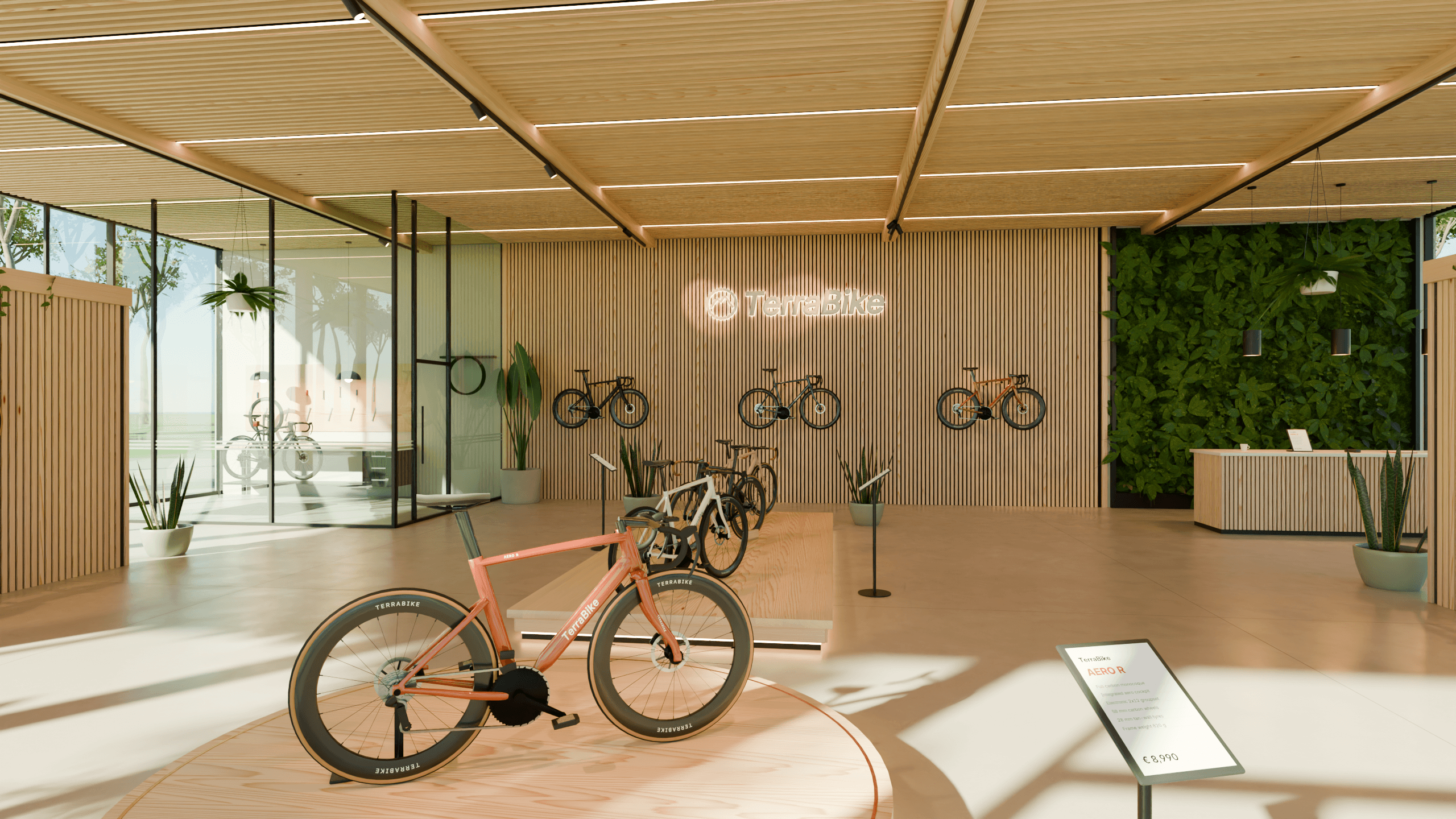
The showroom above is a scene made by our Terra 1 model, running live in your browser. Render the same scene in Blender and this is what you get, straight from its eight cameras.
A product concept, a complete environment, or a training or walkthrough experience people can step into.
Turn a description or reference image into a 3D object you can inspect from every angle.
Bring objects, surroundings, and lighting together into a complete environment.
Give a scene purpose with actions, objectives, and feedback. Install it on Meta Quest 3 and play offline, or run it on Windows and macOS.
Stay close to the brief, from the first prompt to a result your team can review, refine, and use.
Describe what your team has in mind. Add images or other references to make the details clear.
Answer a few follow-up questions and settle the choices that matter to the project.
Orbit and zoom around objects and scenes, or browse screenshots of a playable build. Ask for changes with a new prompt, and every result is kept as a version.
Download the work in a format that fits your pipeline, or install your playable scene on Meta Quest 3 or your computer.
The same three tiers for objects, scenes, and playable scenes: Fast returns soonest, Ultra takes the most care. New projects start on Ultra; change it per project.
Quickest turnaround
More detail and polish
Most thorough results
DefaultReview in the browser, then take objects, scenes, and the Unity projects behind playable scenes into the tools your team already uses.
Explore export formatsAvailable formats depend on your project and its generated output. Playable scenes download as a Meta Quest 3 .apk or as Windows and macOS apps, and every one comes with its Unity project and Blender sources for continued development.
Tell us about your business and how your team will use Terra3D, and we’ll put together a quote.
Get a quote